A collapsible is a row that opens and closes to show more content, used for FAQ lists and filters. The header can carry a descriptive text, icons, a toggle switch and a number badge. The content animates open.
How an editor adds and sets up the Collapsible block in Storyblok. The block is the Storyblok widget for the Collapsible component.
Collapsible block
The Collapsible block is the Storyblok widget for the Collapsible component. An editor builds a group of collapsible rows in a section: first the container, then one Collapsible item for each row. The block works on a white or a grey section.
This page shows the editing in Storyblok. For when to use a collapsible and how it looks, see Examples & Guidelines.
Steps
Add the block. Insert the Collapsible block in a section.
Set up the container. Give the group an optional headline and add the items.
Set up each item. Write the title, add the content, and choose Open and the two dividers.
Add the content. Fill the item with a content block.
Add the block
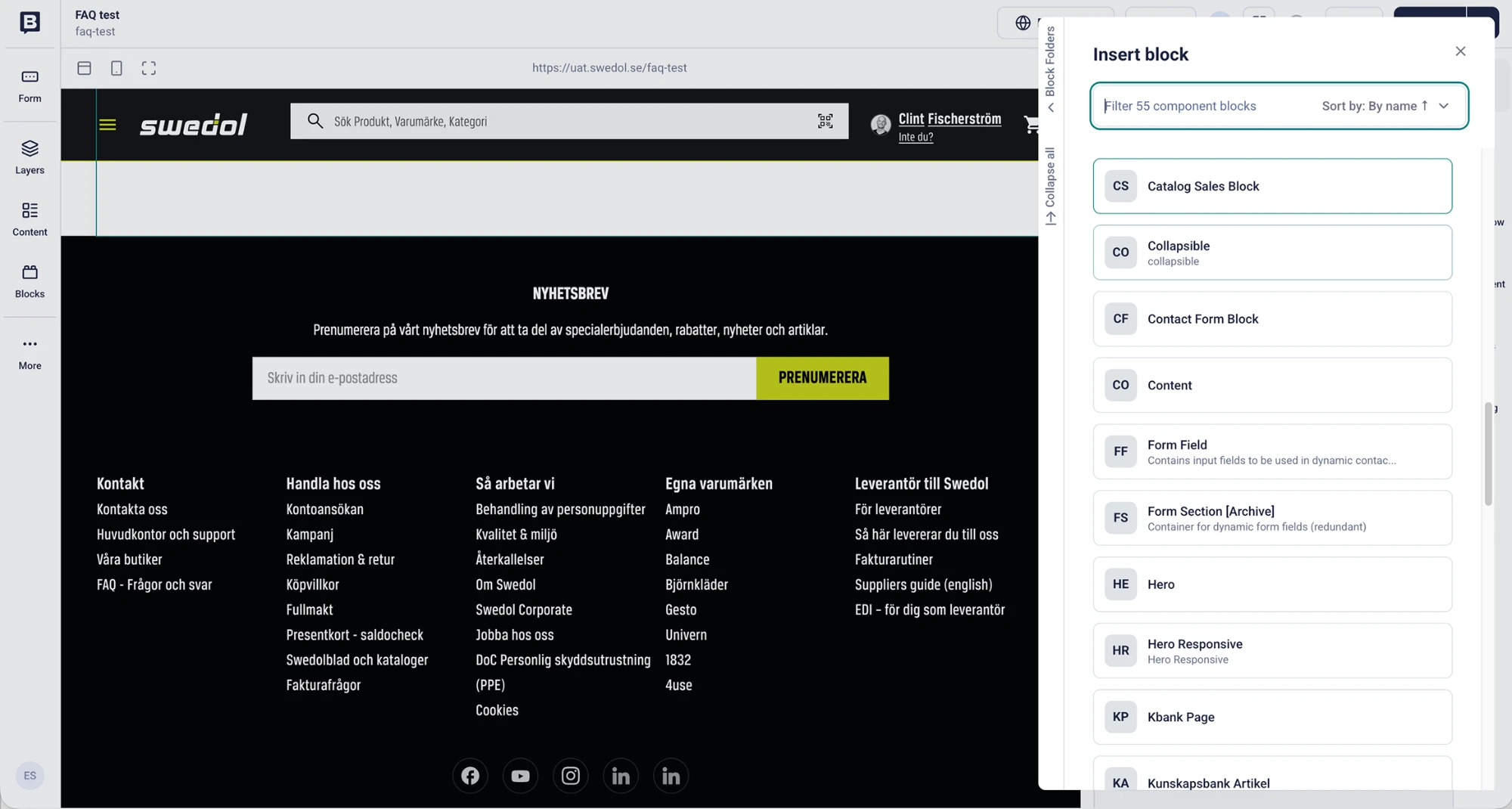
In the section, choose Add block and pick Collapsible in the Insert block list. The block has the technical name collapsible.
The Collapsible block in the Insert block list.
Collapsible block container
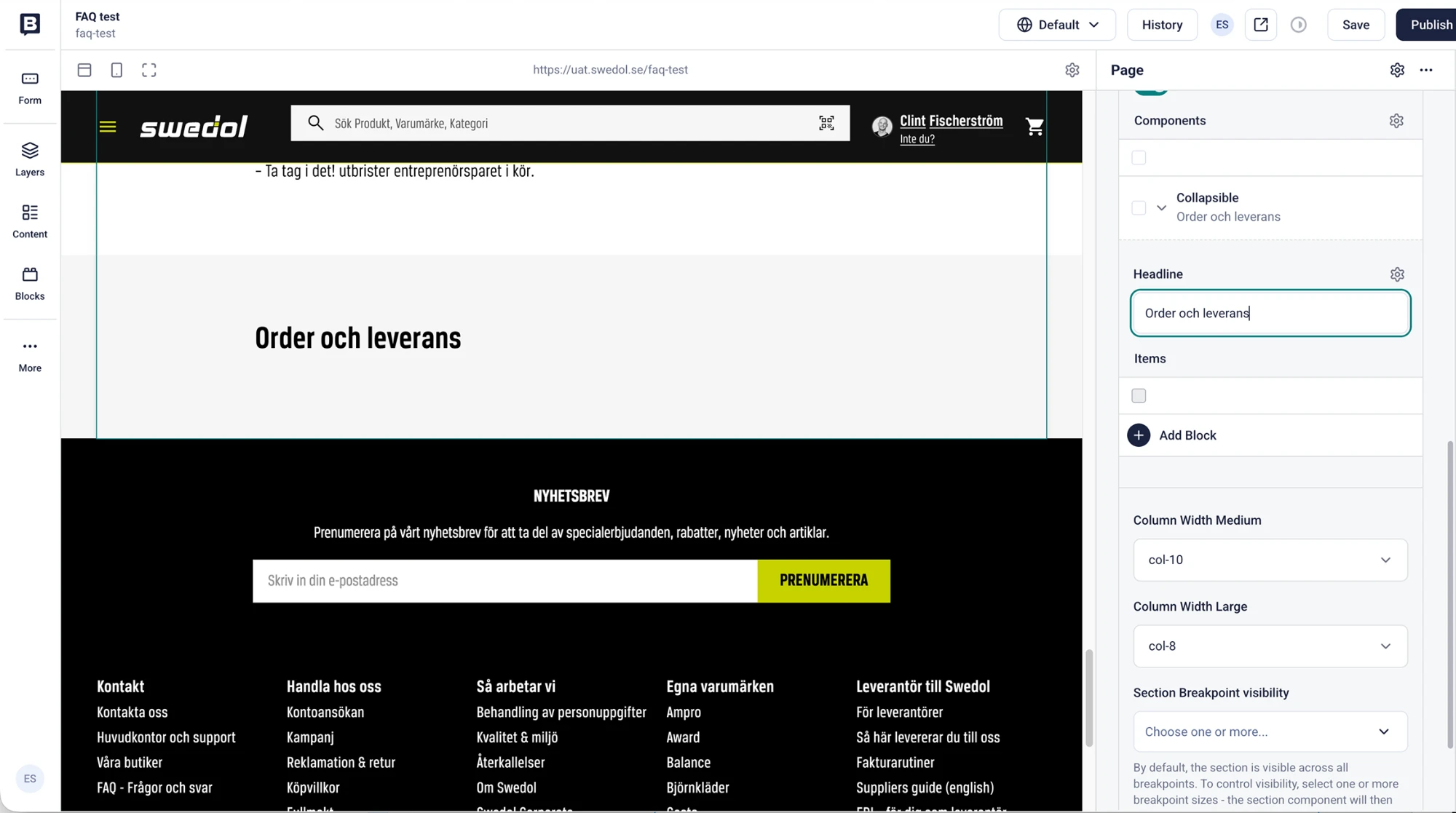
The container holds the group. It has an optional headline and a list of items.
12
The container: the headline and the list of items.
Headline. Optional. The title above the group, for example “Order and delivery”. When a headline is used, skip the top divider on the first item.
Add Block. Adds a Collapsible item to the group. Each item is one row. Add one item for each question or topic.
Collapsible item
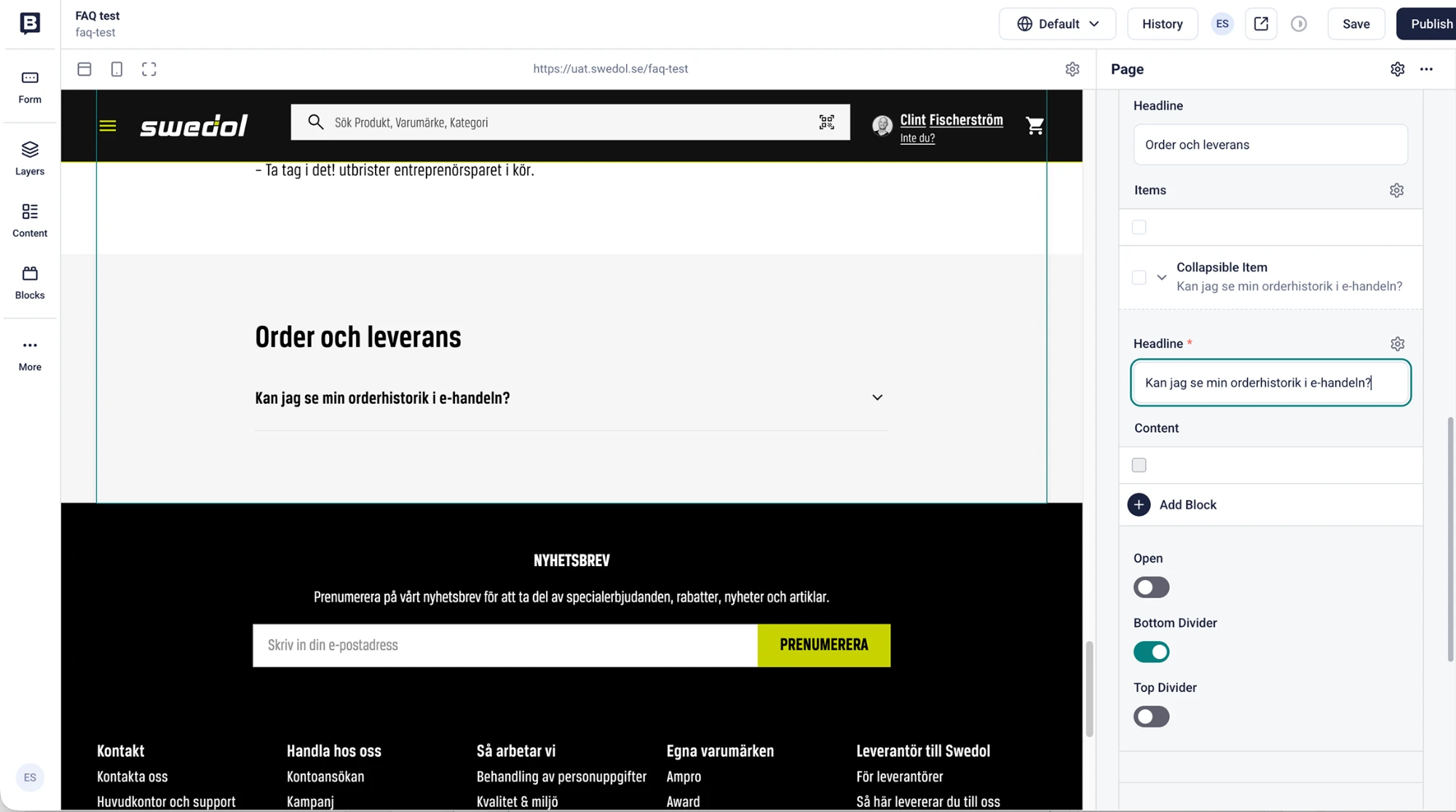
Each item is one row of the group. Set the title, add the content and choose how the row behaves.
12345
The item: title, content and the three switches.
Headline. Required. The title of the row. Keep it short and descriptive; for an FAQ, write the question.
Content. Add Block. The content of the row: open it with Add Block and choose a content block. See the next step.
Open. Off by default. Turn it on to show the row open when the page loads. Use it for the row that helps the user most, for example the first question in a grouped FAQ.
Bottom divider. On by default. The line under the row. Rows in a group share it.
Top divider. Off by default. The line above the row. Use it for the first row of a list in a panel, or for a single collapsible.
In the component
The switches set the same states as the component classes.
Storyblok
Default
Component
Open
Off
collapsible-wrap--open
Bottom divider
On
The default line under the row. Off: collapsible-wrap--no-divider-bottom. The last row in a section loses its line unless collapsible-wrap--divider-bottom is set.
Top divider
Off
collapsible-wrap--divider-top
When to switch the dividers on or off is described under Dividers in Examples & Guidelines: dividers only where they add clarity, none above the first or under the last row of a group, top and bottom for a single collapsible, and none on a colored section.
Content in a collapsible item
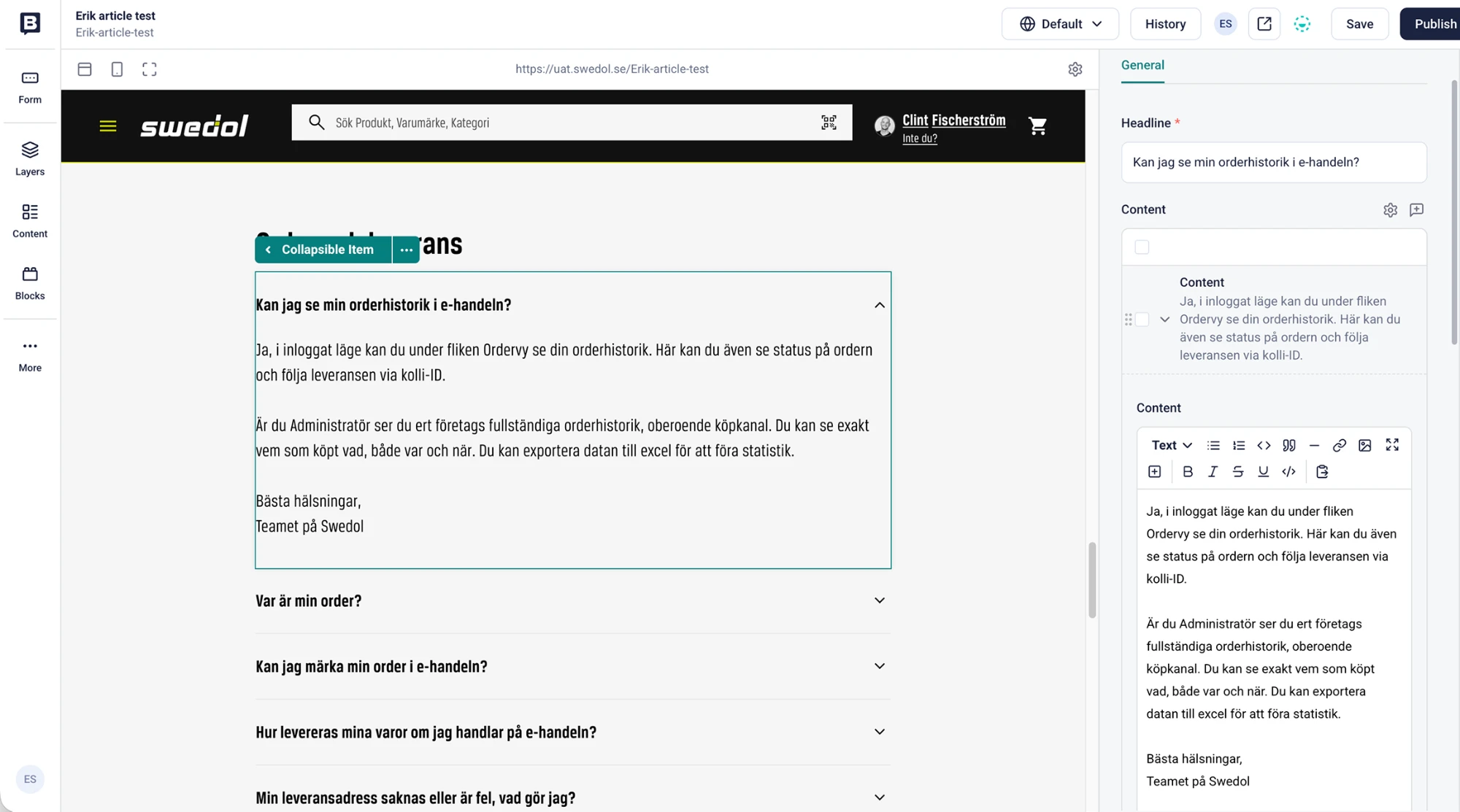
The content of an item is a content block. Open Add Block under Content and choose Content. The block has a rich text editor, so the text can have formatting such as bold, lists and links. The preview shows the row open while it is edited.
2
A Content block in an item. The preview shows the open row.
Keep the text short enough to digest. Review the line length (60–90 characters is ideal) under Typography.
Section column width
The width of the group is set on the section, not on the block. In the section settings, Column Width Medium is col-10 and Column Width Large is col-8 for the group in the examples.
lightbulb
Pro tip
Use the section column width settings to make the content of a group of collapsibles easier to digest.
Related
Examples & Guidelines. When to use a collapsible, the dividers and the best practices.
 2
2