Playground
Choose a variant, size, content and state and the button and its code update. The inverted variants are shown on a dark surface here so they are easy to see; choose them by context, visibility and contrast, not by background color alone. The button in the stage is live: click it, or press Tab to see the focus ring.
Markup for this selection
Overview
A button triggers an action or takes the user to another page. It lets the user make a choice with a single tap. Use a mix of styles on one page to point at the main action and still offer the alternatives.
Button has nine variants (Primary, Secondary, Blank, Destructive, Accent, System and the three Inverted ones), four sizes (Large, Medium, Small, XSmall), a label, one or two icons or an icon only, an optional badge, and four states. The icon button (toggle icons and Close) is a single icon that is also a control.
Choose a style by the role and importance of the action. The guidance for each style applies to all its sizes and states. Use clear, action-specific labels, keep the contrast accessible and the keyboard focus visible.
This documentation has three pages. Examples & Guidelines (this page) shows when and how to use a button. Specifications holds the values: tokens, sizes, measurements, states and requirements. Code shows how to add one to a page.
Usage
When to use
Use a button when the user starts something with a single tap. Use it to:
- Start an action, such as “Add to cart”, “Save” or “Delete”
- Move on to the next step, or to another page, such as “Next” or “Go to checkout” (a link that looks like a button:
<a class="btn …">) - Filter or switch in a group of many buttons (System, with
aria-pressed)
When not to use
More than one Primary button
A page can show several buttons, but one action must stand out. Use at most one Primary button per screen, section or container and Secondary or Blank for the others. Too many Primary buttons cause confusion.
The wrong variant for the context
Choose standard or Inverted by the surrounding context, visibility and contrast, not by the background color alone. An inverted variant keeps the role and priority of its standard variant, and it is not limited to dark or colored surfaces.
A destructive action
Use Destructive for an action that deletes, removes or otherwise causes a potentially harmful change to user data or content. Name the consequence in the label. For an irreversible or high-impact action, add a safeguard such as a confirmation, and allow undo where feasible. Never use Destructive only to draw attention.
A business-critical action
Accent is a brand treatment, not a level in the action hierarchy. Use it selectively for brand personality or a non-business-critical action, and never let it compete with the Primary call to action.
Writing button labels
A label says what the button does. Write it in sentence case in the HTML: the CSS makes it uppercase.
- Start with a verb. Use a clear, specific action verb that describes exactly what the button does: Save, Send, Add user.
- Keep it short. Aim for one to three words, quick to scan: “View details”, not “Click here to view more information”.
- Be specific. Avoid vague labels such as “Submit” or “Confirm” and make the outcome explicit: “Request booking”.
- Name destructive actions clearly. Use a strong, unambiguous verb: Delete, Remove or Discard. Avoid Clear, Reset and Clean. “Delete user” is clear; “Remove” alone is too vague. Add supporting signals such as color, an icon or a confirmation where needed.
- Use the same verb everywhere. Choose one verb for a recurring action and keep it, for example Edit or Modify, not both.
A long label
A long label is slow to scan and makes the button wide. Start with a verb and keep it short.
A vague label
A label such as “Submit” does not say what happens next. Name the outcome.
Quick reference
| The user… | Use |
|---|---|
| starts an action or moves to the next step | Button |
| follows a standalone link, such as “View all products” | Action link |
| follows a link inside a sentence | Inline link |
| chooses a brand or category from a graphic tile | Tile link |
| picks one of 2–4 short options in a toolbar | Button group |
| switches between two related views | Pill segment control |
| turns a setting on or off at once | Switch |
Do
- Use at most one Primary button per screen, section or container.
- Use Secondary for “Cancel” and “Back”, and Blank for the quietest actions.
- Write short labels that start with a verb.
- Choose standard or inverted variants by context, visibility and contrast.
- Name the consequence on a Destructive button.
- Give every icon-only button an
aria-label.
Don’t
- Show several Primary buttons next to each other.
- Use a button for navigation to another site section when a link fits. Use a link.
- Use Destructive as the default choice in a dialog.
- Use a variant that lacks clear contrast on its surface.
- Use Accent for a business-critical action such as “Add to cart”.
- Hardcode colors or sizes. Use the tokens and the size classes.
Anatomy
Button
- Container. A box of a fixed height with the content centred. Large is 56px high on desktop and 48px on mobile. The 1px frame of Secondary and System is drawn inside the box.
- Icon. Optional, before the label, after it, or on both sides. Material Symbols, 24px (20px in XSmall), with no gap to the label.
- Label. Breuer Condensed, uppercase, 600. It has its own 8px inset (4px in XSmall), so the width is the label plus both insets.
- Badge. Optional number in the top right corner, a count that shows “99+” over 99. It shows that something needs attention and is hidden from screen readers.
An icon-only button is a square the same height as the text button.
Icon-only button with a dot
- Container. A square, as wide as it is high: 56px on desktop and 48px on mobile for Large. There is no label and no padding, so it needs an
aria-label. - Icon. The only content, centred. Material Symbols, 24px (20px in XSmall),
aria-hidden="true". - Dot. A 6px circle in
surface-danger-defaultin the top right corner. It shows that something is new, with no count, and is hidden from screen readers: put “new” in thearia-label. Its offset from the corner follows the size and breakpoint (12px for Large on desktop).
Variants
Nine variants in four sizes. The Breakpoint toggle previews what Figma calls Desktop (769px and up) and Mobile (below 769px). The component switches by itself at 769px, so you never set it yourself.
Hierarchy
A page can show more than one button. Combine styles so one action stands out and the others are quieter. Large, Medium, Small and XSmall are shown on each row.
The inverted variants (Primary, Secondary and Blank) keep the role and priority of the standard ones. They are shown on a dark surface here. Choose between standard and inverted by context, visibility and contrast, not by background color alone.
When to use each variant
| Variant | Use when | Avoid when |
|---|---|---|
| Primary | The most important, highest-priority action, typically the user’s main goal: completing a task or moving forward in a process, such as “Add to cart”, “Proceed to checkout”, “Continue” or “Submit”. Use at most one Primary button per screen, section or container (for example a banner or a card), so buttons do not compete and the way forward is clear. | Several high-priority actions appear together. Use Secondary or Blank to set the hierarchy. |
| Secondary | Supporting actions that matter but are not the main task, such as “More info”, “Edit” or “Export”. It works next to a Primary button as a complement without competing with it, or alone when no Primary action is needed. Also when a task needs more weight than a Blank button, for example “+ Add address” beside a Blank “Update”. | It sits among other visually heavy actions, where a lighter option (Blank or System) fits better. |
| Blank (tertiary) | Low-emphasis actions that stay available without dominating the interface: in headers, filter panels and table tools, or beside a Primary button as “Cancel” in a dialog, or “Read more” next to “Buy now”. Choose Blank by the action’s importance, not by the number of buttons in a group. It can appear several times in one view. | The flow is critical (checkout, form steps) and clarity and emphasis matter, for the main call to action, or for actions that must be easy to discover. Users may fail to recognize it as clickable. |
| Destructive | Actions that delete, remove or otherwise cause a potentially harmful change to user data or content. Use it with caution, with a specific label such as “Delete project”. For irreversible or high-impact actions add a safeguard such as a confirmation, and allow undo where feasible. | As a default action, or only to draw attention to a non-destructive action. |
| Accent | Selective use to express brand personality or highlight a non-business-critical action. A brand treatment, not an extra level in the hierarchy. It uses the brand colors in the semantic tokens: accent-default for the background and text-action-accent for the label. | Business-critical actions such as “Add to cart”, or where it would compete with the Primary call to action. |
| System | A low- to medium-emphasis action that must be clickable without competing with more important ones. For dense interfaces where many buttons appear at once: lists with many actions (rows and cards), filters, tables and data-dense views, and low business-priority actions such as “Show details”, expand, open tools or open settings. It keeps the hierarchy between Primary and Secondary clear and the interface calm. | High-priority actions (use Primary). Business-critical but secondary actions (use Secondary). Destructive actions (use Destructive). A button that must stand out in a busy context such as a modal, a step or checkout. |
| System selected | A System button that is an active mode, turned on or off with an immediate effect: a mode switch for views, filters, tools and functions, such as activating a filter chip or choosing a sorting mode. The selected look stays until the selection changes. Use aria-pressed. | An on/off setting (use a Switch). An action that needs confirmation, such as deleting or a critical change (use Primary or Destructive). An action without immediate effect (use a checkbox and an Apply button). A one-time action. |
| Inverted | Primary, Secondary and Blank Inverted have the same role and priority as the standard ones. Choose them when their appearance gives clear visibility and enough contrast in the surrounding context. Not limited to dark or colored surfaces. | The standard variant already has clear contrast on the surface. |
With icons
Each variant can be used with a leading icon, a trailing icon, both, or an icon only for compact or utility-focused interactions. A leading icon is the usual choice; a trailing icon, or both, is not common but an option when needed. The icon is 24px (20px in XSmall), with no gap to the label. Icons here are Material Symbols.
Icon only
Use an icon-only button where space is constrained. It is a square the same height as the text button, it needs an aria-label, and it is always accompanied by a tooltip that describes the action. The tooltip is shown after a 300ms hover delay (see Behavior in Specifications).
Badge
A badge sits in the top right corner and shows that something needs attention, such as items in a cart. It is a number (a count that shows “99+” for anything over 99, so type 150 in the playground and you get 99+) or a dot (something new, no count). It works on a button with a label and on an icon-only button, in every size. Size and position follow the button size and breakpoint (see Sizes in Specifications).
In Small and XSmall the number badge overlaps the end of the label, as in Figma. Prefer an icon-only button when the label is long. The badge is decoration for the eye: put the count in the aria-label and mark the badge aria-hidden="true".
System buttons and selected
System buttons toggle: click one to select or clear it. Selected has a surface-opacity-black-12 surface and the same quiet frame.
Combining variants
A general rule is to pair a high-emphasis button with a lower-emphasis one. In most cases that is a Primary with a Secondary: Secondary is the go-to partner of a Primary.
- Multiple actions. In layouts with many actions, such as page headers, data lists or dashboards, group the low-emphasis buttons together to keep the visual balance. Use the same low-emphasis variant for all of them, typically System buttons.
- Dialogs and panels. Use a Primary button for the confirmation, a Secondary for supporting actions, and Blank for lesser supporting actions such as Cancel or Back.
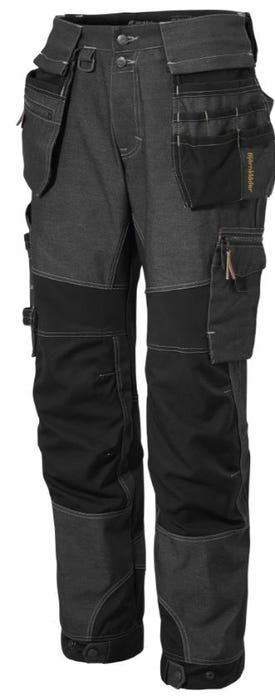
Carpenter Soul work pants stretch black has been added to the cart.
Icon buttons
An icon button is a single icon that is also a control, with no label and no frame. It is used where the action is well known from the icon: favourite, edit, show on a map, scan, close. Do not use it where the icon alone would be unclear. Use a tooltip (Tooltip) and an aria-label.
Toggle icons
Eight icons in Figma. Each has Enabled, Hover, Selected and Selected hover, in Large (24px) and Small (20px). Selected shows the filled icon. The icons on this page are Material Symbols stand-ins for the exact Figma drawings. Every state is under States in Specifications.
Close
A 24px box with a 20px icon, for closing a modal, drawer, banner or toast. It has a Blank and a Blank inverted version (for contexts where the standard one lacks contrast). Hover adds a surface. The size is the same on desktop and mobile.
Sizes
Four sizes. Large, Medium and Small change at 769px; XSmall is 32px high on both. Figma has two versions of every button: “XLarge–Large–Medium” (Desktop, 769px and up) and “Small–XSmall” (Mobile, below 769px). The tablet range (640 to 768px) uses the Mobile version. The breakpoint behavior of each size is the same for every variant and grid density. Measurements are under Sizes in Specifications.
Layout & Appearance
Alignment
To be added to the Foundations (Layout) page: where the Primary button goes, how buttons stack when they do not fit side by side, and what to do with a label that does not fit. Pairs of buttons are under Variants, Combining variants.
Width
A button is as wide as its content: padding, icon or label, and the label inset, on both sides. An icon-only button is a square. There is no minimum width and no modifier for a full-width button: a button that must fill its container gets its width from the page layout.
Appearance
Square corners, a fixed height per size, and an uppercase label in Breuer Condensed, 600. Primary, Destructive and Accent are filled; Secondary and System have a 1px frame; Blank has neither. Token names and values are under Design Tokens in Specifications.
Behavior
Hover
A layer dissolves in over the base color: surface-opacity-white-20 on Primary, Destructive and Accent, surface-opacity-black-12 on Primary inverted, surface-opacity-black-05 on Secondary and Blank, and surface-opacity-white-20 on the inverted Secondary and Blank. System hover and System selected hover are the same: a surface-opacity-black-12 surface and a border-hover frame.
Focus
The ring is a 2px border-focus line with a 2px gap, drawn outside the button, so it never moves anything. It shows on keyboard use only: body.keyboard-nav is set on Tab and removed on mousedown and touchstart, the same as the form controls.
Disabled
Use the disabled attribute. A disabled button is not focusable and has no hover. Secondary, Secondary inverted and System keep a frame in border-disabled with no fill; Blank has neither; the others get surface-disabled. Say why in nearby text when the reason is not obvious.
Selected (System)
A System button is a toggle. A click sets or clears aria-pressed; your script does it, the CSS does not. It must not be used for page navigation. Selected is a persistent state, not hover, focus or a temporary pressed state, and it stays until the selection changes. Do not use it for a one-time action.
Destructive actions
For an irreversible or high-impact action, add a safeguard such as a confirmation, and allow the user to undo it where feasible. Never make Destructive the default choice in a dialog.
Icon only
An icon-only button has no visible text, so it is always accompanied by a tooltip that describes the action. The tooltip appears after a 300ms delay when the user hovers the button. A disabled button never has a tooltip.
Motion
The hover layer dissolves in over 100ms with ease-standard. Details are under Motion in Specifications.
All states are listed under States in Specifications.
Accessibility
All requirements are listed under Accessibility Requirements in Specifications.
Keyboard support
Tab moves between buttons. Enter or Space runs the action (a link that looks like a button runs on Enter). The focus ring shows on keyboard use only.
Screen reader support
Use a label that names the action, such as “Delete project”, not “Confirm”. Use <button> for actions and <a class="btn …"> for navigation. An icon-only button needs an aria-label, and its icon is aria-hidden="true". A badge is hidden too: put the count in the aria-label. A System button announces its state through aria-pressed.
References
- WAI-ARIA Authoring Practices: Button. Keyboard and role requirements.
- WCAG 2.2: Non-text Contrast. Success criterion 1.4.11.
- WCAG 2.2: Target Size (Minimum). Success criterion 2.5.8.
- Fluent 2: Button. Microsoft.
- Material Design 3: Buttons. Google.
- Carbon Design System: Button. IBM.