Playground
Choose a size, status and emphasis and the banner and its code update. The × works: it closes the banner, and Show again brings it back.
The animation when the × is clicked is set in Motion.
Markup for this selection
The markup has no motion. Closing animation is set in Motion.
Overview
A banner carries a page-wide or system-level message: an outage, planned maintenance, a campaign or a notice to one customer group. It sits at the top and stays until it is closed or the situation changes.
Banners are set up by an administrator, not by user actions. See Placement and priority for where they go and which one wins. Feedback on a click belongs in a Toast; status next to one form or block in an Inline notification.
This documentation has three pages. Examples & Guidelines (this page) shows when and how to use a banner. Specifications holds the values: tokens, sizes, measurements, states and requirements. Code shows how to build a banner and the CSS behind it.
Usage
When to use
Use a banner for what concerns the whole page, the whole site or a customer group. Use it to:
- Report an outage, a disruption or planned maintenance
- Announce a campaign, a price change or free shipping
- Tell a signed-in customer or a customer group something that needs their attention, such as an unpaid invoice
When not to use
For the page, not for a click
A banner stays until it is closed. The result of a click belongs in a Toast, next to where the user is working.
Strong only for what is urgent
Weak is the default and Weaker suits general information and offers. Strong is a solid color: use it sparingly, for a critical outage, a blocked main flow or risk of data loss. See Choosing the emphasis.
Large only on My Pages
Large is a richer message for a signed-in customer. For a one-line message use Small.
Quick reference
| The message… | Use |
|---|---|
| concerns the whole page or system, or a customer group | Banner (this page) |
| is feedback on something the user just did | Toast |
| belongs to one section or form | Inline |
| needs a decision before the user can go on | Modal |
Do
- Use Strong only for what is urgent: outages, impersonation.
- Use Weaker for general information and offers.
- Use Large only on My Pages.
- Match the icon to the status color.
Don’t
- Show several banners in the same place. Priority picks one.
- Use a banner for the result of a click. Use a Toast or Inline.
- Hardcode a brand color in a Promotion banner. Use the accent tokens.
- Use Large for a one-line message.
Anatomy
Small
- Left edge. 2px, in the status color.
- Status icon. 24px. Informational may take an icon of its own.
- Title. Optional.
label-sm, bold, uppercase. - Text.
body-sm, 14/20 (mobile 12/18). - Inline link. Optional. Small Bold, 14/20, between the text and the ×.
- Close. A Blank icon button, 20px icon. Shown or hidden by the administrator.
Large
- Left edge. 8px on desktop, 4px below.
- Status icon. 48px (40px tablet, 24px mobile).
- Heading.
title-md, bold. - Body.
body-md. - Actions. Buttons or inline links, indented to line up under the text.
- Close. A Blank icon button.
Promotion
- Title. Uppercase,
label-md. Followed by “ -” on desktop. - Link. An inline link. The whole banner is the click target.
- Close. A Blank icon button (inverted on Dark).
Variants
Three kinds of banner. Small is the everyday banner for status and campaigns. Large is a richer message for signed-in customers, shown on My Pages only. Promotion is for brand campaigns and has no status.
Small
One line of text with an optional uppercase title and an optional inline link before the ×. Height 48px on desktop, 40px on mobile. The first two examples carry a link.
Large
A big icon, a heading, body copy and an action group with buttons and an optional link. Use it for a message to a signed-in customer or customer group, not for a one-line status.
Promotion
A centered campaign line in black, white or the brand’s own accent color. Strong and Weak read the accent tokens, so they are lime on Swedol and red on Tools without any extra code.
Emphasis
Each status comes in three levels. Strong is a solid color with white text and is the loudest, Weak is tinted, Weaker is white with a colored edge and a shadow. Choose by how much the user must notice it: Weaker for general information and offers, Weak for something to notice, Strong only for what is urgent. All combinations are under States in Specifications.
Sizes
Small is 48px high on desktop and 40px below. Large changes its icon, padding and text at each breakpoint. Promotion is 48px on desktop and 32px on mobile. All values are under Sizes in Specifications.
Small
Large
Promotion
Layout & Appearance
Alignment
Everything in a Small banner is top-aligned on one row: the icon, the text, the inline link and the ×. In Large the actions start under the text. Promotion is centered on desktop; on mobile the title is on the left and the link and the × on the right.
Placement
Banners go at the top of the page: above or below the site header, beneath the breadcrumb, or on top of the My Pages dashboard. Where each size goes, and which banner wins when several fit, is under Placement and priority.
Width
A banner is always 100% of its container.
Appearance
Every banner has the elevation b-20. Strong is a solid status color; Weak is tinted with a 1px edge; Weaker is white. Token names and values are under Design Tokens in Specifications.
Placement and priority
An administrator sets up each banner: its text and size, which pages it shows on, which customers or industries (SNI codes) it targets, and an optional date range. Three of those decisions are shown below.
Where a banner goes
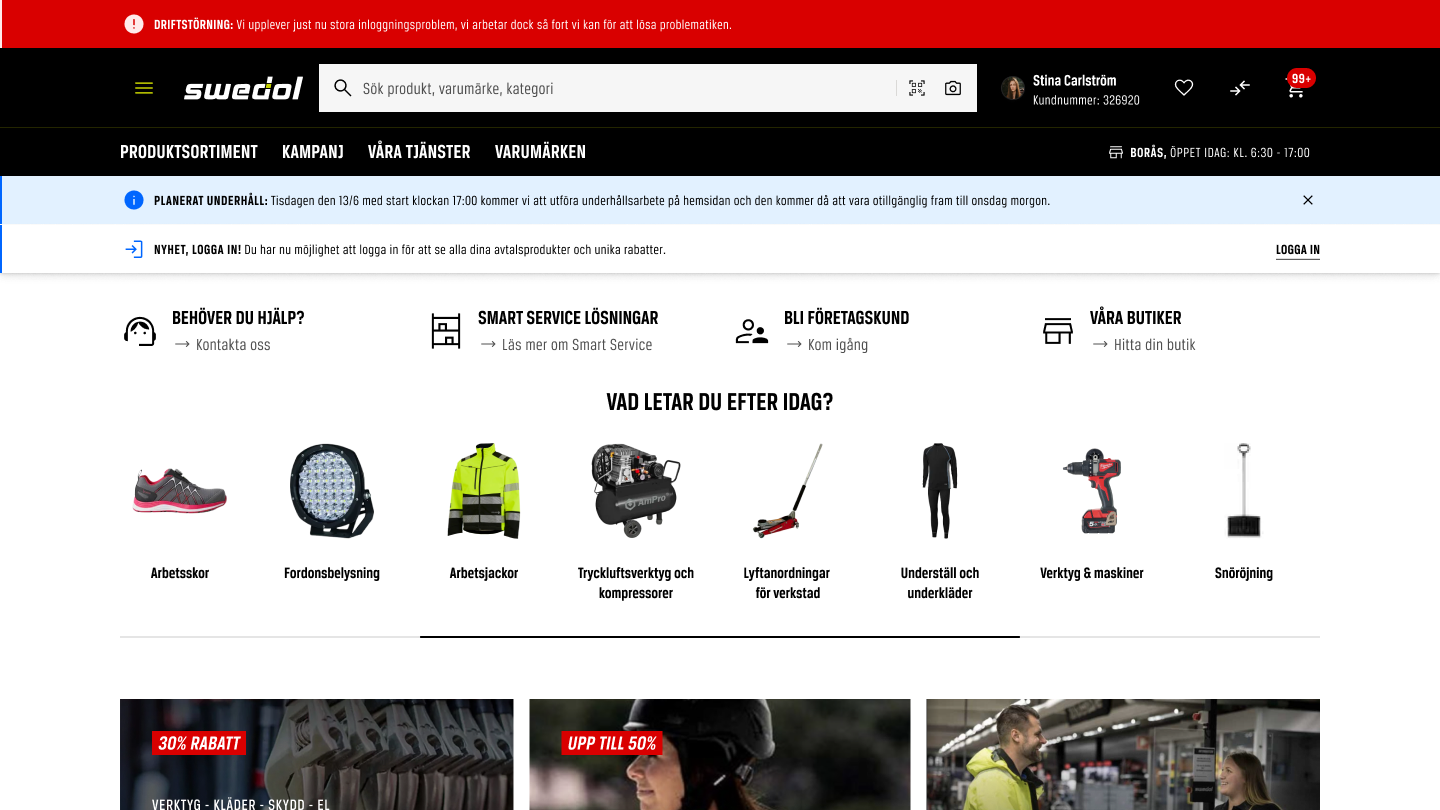
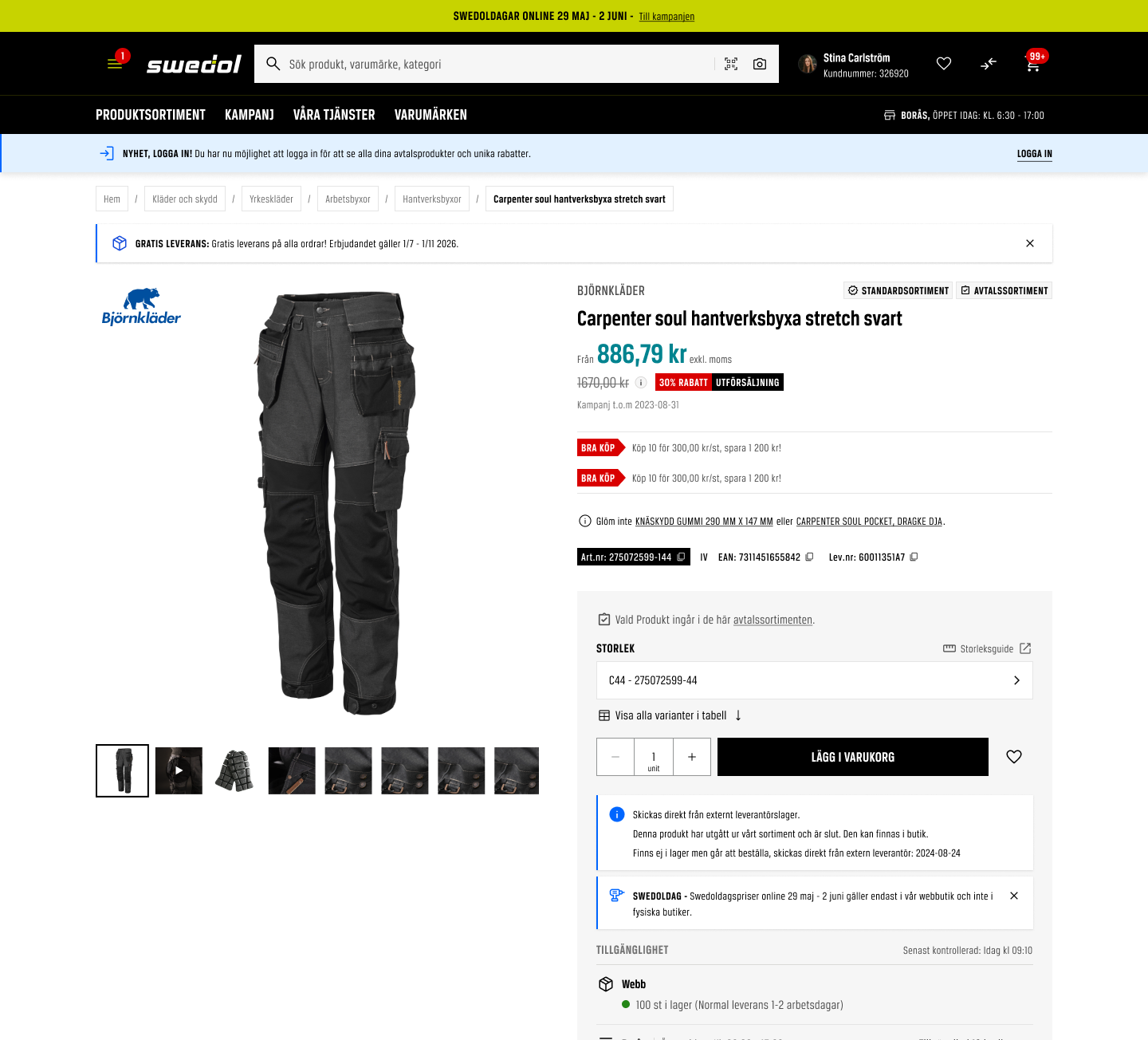
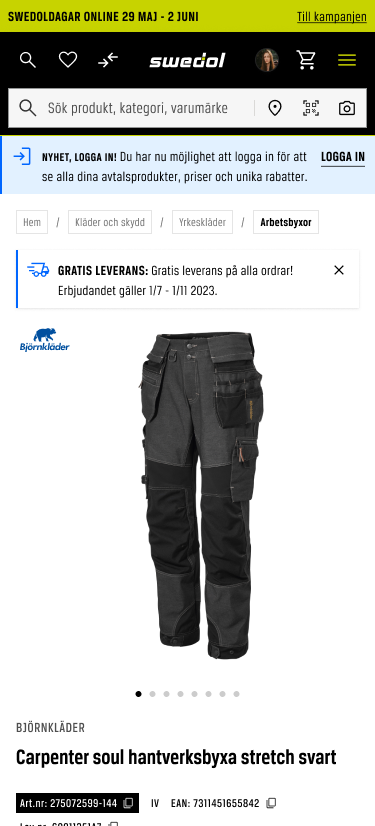
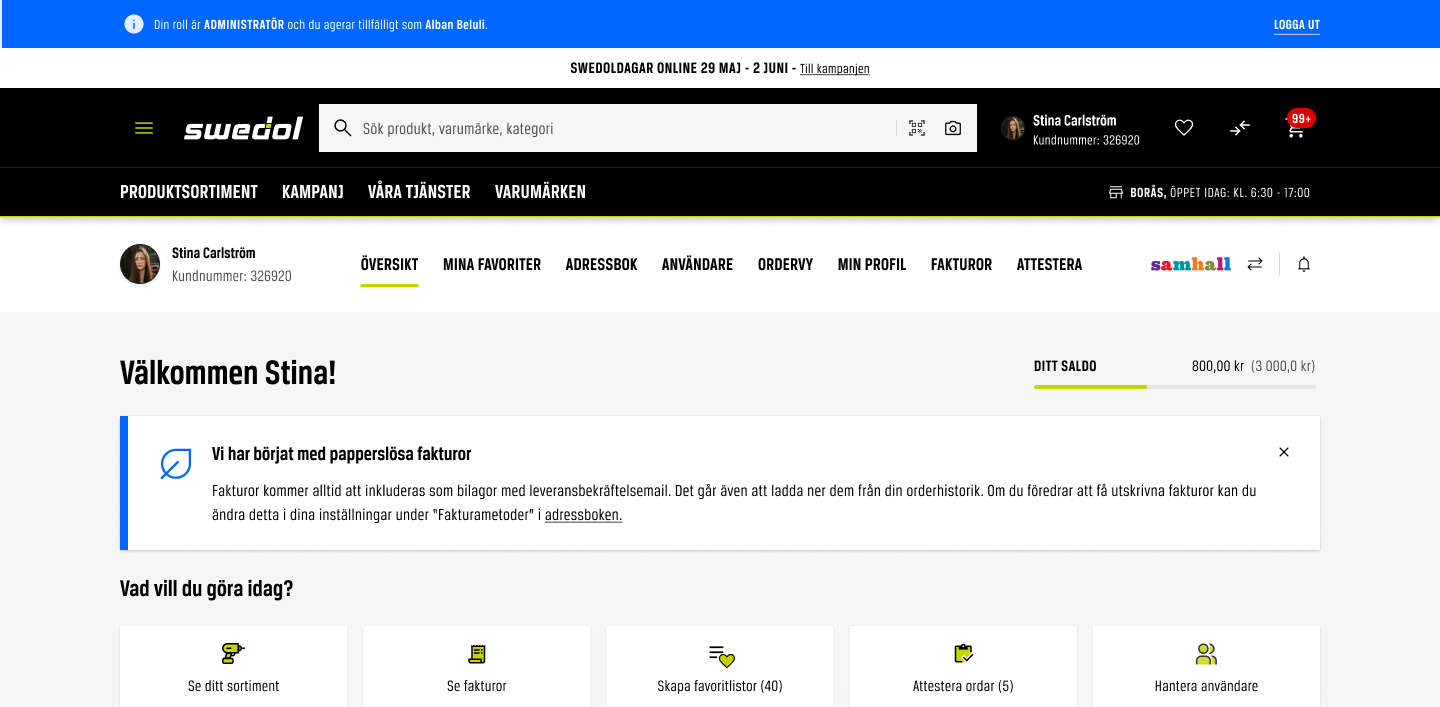
Examples from the design (Figma: Banner placement examples). Placement and size depend on the page type; the table below sums it up.
| Page | Banner size | Placement | Targeting |
|---|---|---|---|
| PDP | Small | Beneath the breadcrumb | Banner setting, SNI codes, customer IDs, dates |
| PLP | Small | Beneath the breadcrumb | Banner setting, SNI codes, customer IDs, dates |
| My pages | Large | In the context of the dashboard, on top of it | Banner setting, SNI codes, customer IDs, dates |
| All pages | Small | Header top (directly above the site header) or header bottom (directly below it) | Banner setting, SNI codes, customer IDs, dates |
Every banner can also target one or more SNI codes (industry codes), one or more customer IDs, and a start and end date. Norway and Finland use the equivalent industry classification of their own country where one exists (for example SN2007 in Norway and TOL 2008 in Finland), in the same field as the Swedish SNI code.
Which banner wins
When more than one banner matches the same visitor and place, only the one with the highest priority shows. The administrator labels each banner with one of four priorities: 1 is strongest. On top of those sits level 0, Opt-out: a company can choose to see no banners at all, and that choice overrides every level, alerts included.
Meet Axel Bonde AB
Persona: Axel Bonde AB is a signed-in customer who runs a farm. One visitor can fit several levels at once: Axel has a customer ID (so a banner can be written for him personally), his business has an SNI code for farming (so an industry banner fits), and he is a customer like everyone else (so the general campaign fits). Press a row below to say whether that banner applies to Axel, then read what he sees and why.
| Priority | Banner | Applies to Axel? | Result for Axel |
|---|
What Axel sees
Behavior
Dismissal
The × hides the banner with a fade and a height collapse, so no gap is left. Whether the × exists at all is decided by the banner’s owner, not by the component.
Persistence
A banner never disappears by itself. It stays until it is closed or the state changes.
Hover and focus
Only the ×, the buttons and the links have states. They take focus with a visible ring, on keyboard use only. In Promotion the whole banner is the click target. All states are under States in Specifications.
Motion
Closing is a fade and a collapse: accelerate easing, 150ms. Try other values under Motion above, and see Motion in Specifications.
Accessibility
All requirements are listed under Accessibility Requirements in Specifications.
Keyboard support
Tab moves to the ×, the buttons and the links, each with a visible focus ring. In Promotion the ring follows the clickable banner.
Screen reader support
A Strong or Error banner for an outage should use role="alert"; other banners need no role. Place the banner at the top of the content in the DOM so screen reader users meet it first. The status is carried by the icon and the text, not by color alone.
References
- WCAG 2.2: Status Messages. Success criterion 4.1.3.
- WCAG 2.2: Use of Color. Success criterion 1.4.1.
- Carbon Design System: Notification. IBM.
- Adobe Spectrum: In-line alert. Adobe.